
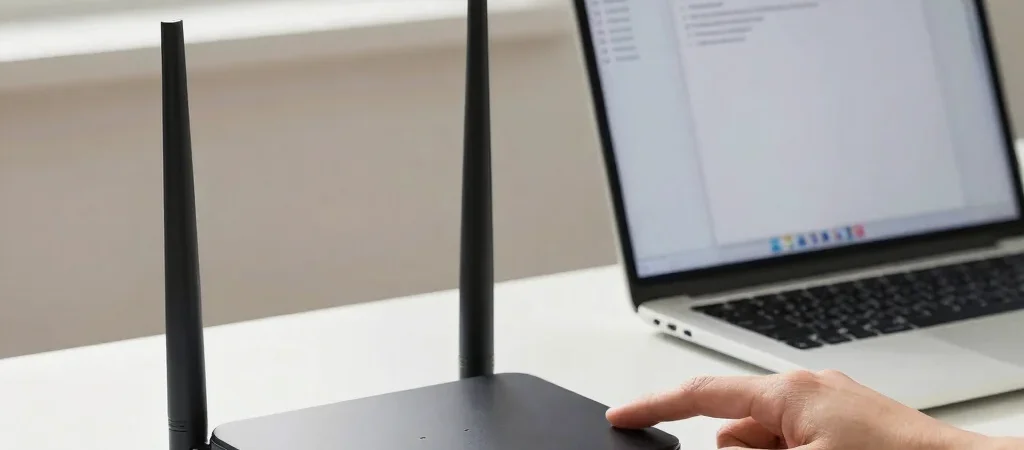
A Wi-Fi icon only confirms that your device has joined the wireless network; it does not confirm that the network can reach the internet. Before changing router settings, check whether another device on the same Wi-Fi can load a webpage. That quick comparison points you toward either the device or the connection.
Check the scope first
Try opening a familiar website on a second phone or computer connected to the same network. If that device also fails, the issue is probably with the router, modem, or internet service rather than one device. If only one device is affected, turn its Wi-Fi off and back on, then test again.
Also check whether the device is waiting for a sign-in page. This can happen on guest networks, in hotels, or after a router's access settings change. Open a browser and visit a simple webpage; if a network sign-in screen appears, complete it before trying other fixes.
Restart the network in order
If several devices are offline, unplug the router and modem, or the combined gateway if your provider supplied one. Wait about 30 seconds, reconnect the modem or gateway first, and give it time to reconnect before powering the router back on. Lights and startup times vary by model, so check the device labels or manual if you are unsure which box is which.
Once the network is back, test a webpage on more than one device. If the router shows an internet or WAN warning light, or no devices can get online after a restart, check your provider's outage information or contact support. A factory reset is a much bigger step: it can erase the network name and settings, so do not use it as a routine restart.
When one device stays offline
On a phone or computer, forget the Wi-Fi network and join it again using the current password. On Windows, open Settings, choose Network & internet, then Wi-Fi, and look for the option to manage known networks. On an iPhone, open Settings, tap Wi-Fi, tap the information button beside the network, and choose Forget This Network; menu wording can vary by software version.
If reconnecting does not help, temporarily turn off a VPN or manually configured proxy and test again, then restore it if it is needed. Avoid changing DNS or router security settings until you have a reason to suspect them; those changes can create new problems without fixing an outage. For more context, see our guide to checking a router's status lights.